12
Jun 2026

Control your lights. Your way. From your phone.

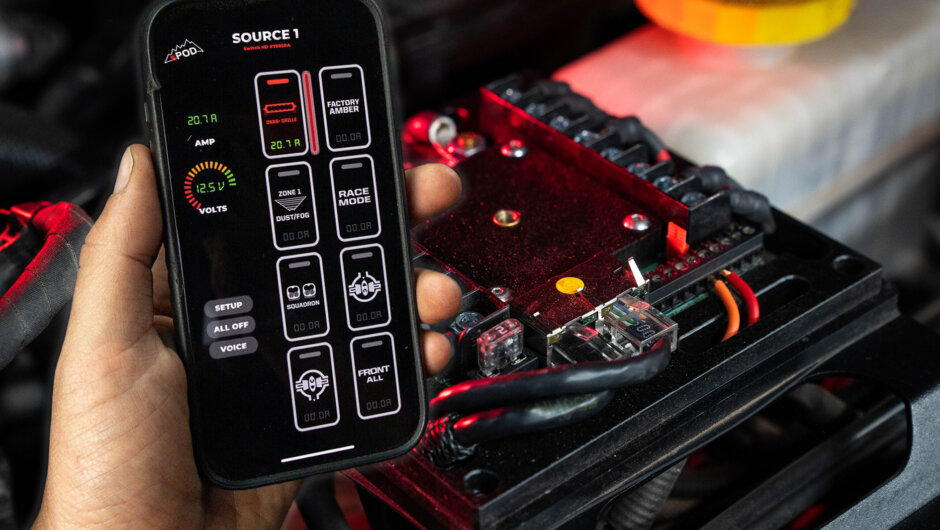
The sPOD BantamX isn’t just a power management system — it’s a fully connected command center for everything running off your electrical system. And with the free sPOD app, you’ve got complete control of your switches, lighting zones, and custom presets right from your phone.

If you’ve got a BantamX installed and haven’t set up Bluetooth yet, you’re leaving one of the best features on the table. Here’s exactly how to get paired and take control.

What You’ll Need

  • sPOD BantamX (installed and powered on)
  • Smartphone (iOS or Android)
  • The free sPOD App — available on the App Store and Google Play
  • About 5 minutes

Watch the Full Walkthrough

Prefer to see it done step by step? We’ve got you covered. The video walks through every step from download to first connection — great reference if you run into any snags.

Step 1: Download the sPOD App

Before you touch anything in the cab, grab the app. Search “sPOD” in the App Store or Google Play and install it. It’s free.

Open the app and create an account if you don’t already have one.


Step 2: Power Up Your BantamX

Make sure your vehicle is on or in accessory mode so the BantamX has power. The unit needs to be active before your phone can find it.


Step 3: Enable Bluetooth on Your Phone

Head to your phone’s settings and make sure Bluetooth is turned on. You don’t need to manually pair through your phone’s Bluetooth menu — the sPOD app handles the connection for you.


Step 4: Connect Through the sPOD App

Open the sPOD app and tap “Connect Device” (or the Bluetooth icon, depending on your app version). The app will scan for nearby BantamX units and display yours in the list.

Tap your BantamX to initiate the connection. Once paired, the app will sync with your unit and you’ll see your switch layout populate on screen.

First time connecting? You may be prompted to confirm a pairing code. Just follow the on-screen prompts — it takes seconds.


Step 5: Customize Your Switch Layout

This is where the BantamX earns its keep. From the app you can:

  • Name each switch — Label channels by what they control (light bar, rock lights, air compressor, etc.)
  • Set switch types — Momentary, toggle, or pulse — whatever fits the accessory
  • Switch Linking — Group multiple switches into a single tap for trail mode, camp mode, and more
  • Adjust backlight color and brightness — Match your cab’s vibe or dial it down for night driving

Troubleshooting Tips

App can’t find the BantamX?

  • Confirm the unit is powered on
  • Make sure you’re within Bluetooth range (roughly 30 feet)
  • Close and reopen the app, then try scanning again

Connection drops after pairing?

  • Check that no other device is actively connected to the BantamX — it pairs to one device at a time
  • Forget the device in the app and re-pair

Switches not showing up?

  • Try a full re-sync by disconnecting and reconnecting in the app
  • Make sure your app is updated to the latest version

Take Full Control

Once you’re connected, the BantamX and sPOD app become one of the most versatile setups on the market. Whether you’re running a full lighting kit from Baja Designs or powering a roof top tent, air locker, and fridge, you’ve got centralized, programmable control — all from your phone.